Click through Mycel before you sign up
Four real screens from the app, one step at a time. No signup and no email needed.
Screens from our sample business, Alder Creek Heating & Air. Every name, file, folder and account on them is sample data, not a customer.
Step 1 of 4
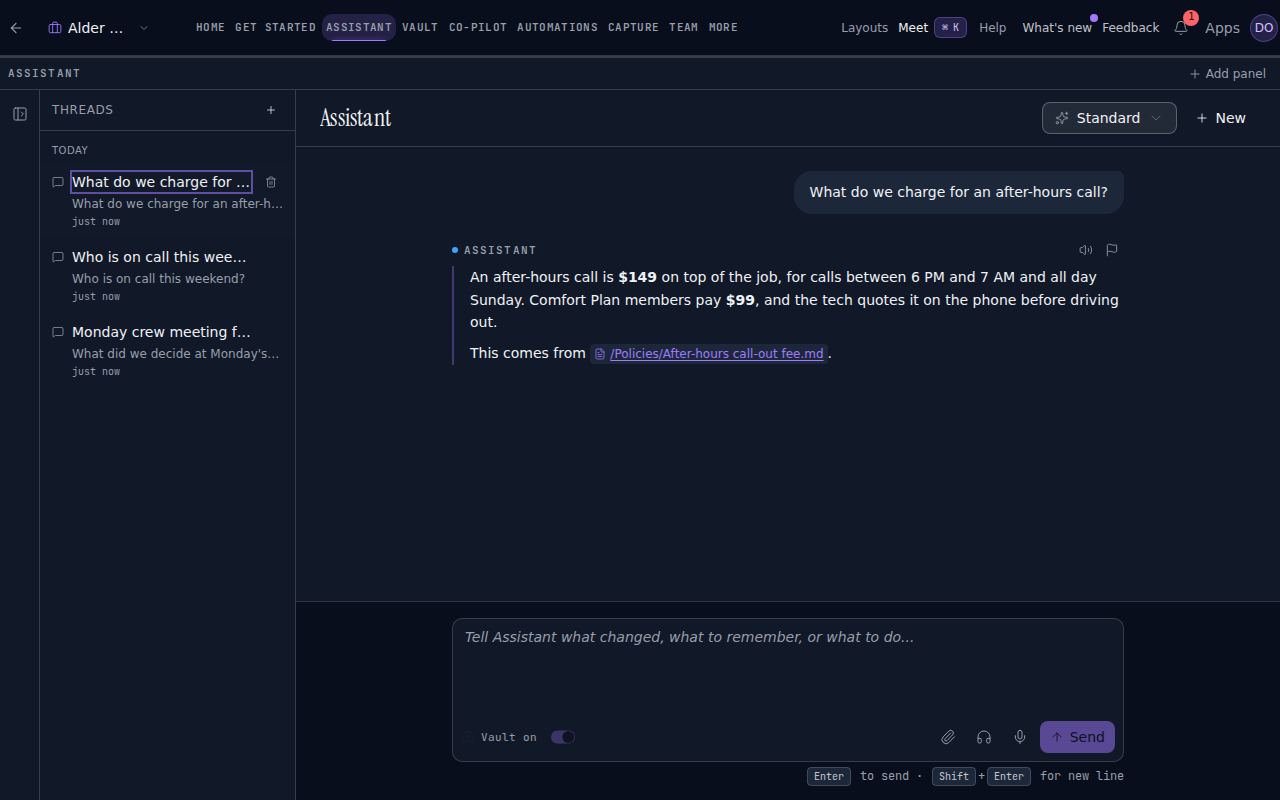
Ask, and the answer comes from your own files
Ask the assistant a question the way a teammate would. It answers from what your business has filed and links the file it used, so anyone can open the source and check it.
Step 2 of 4
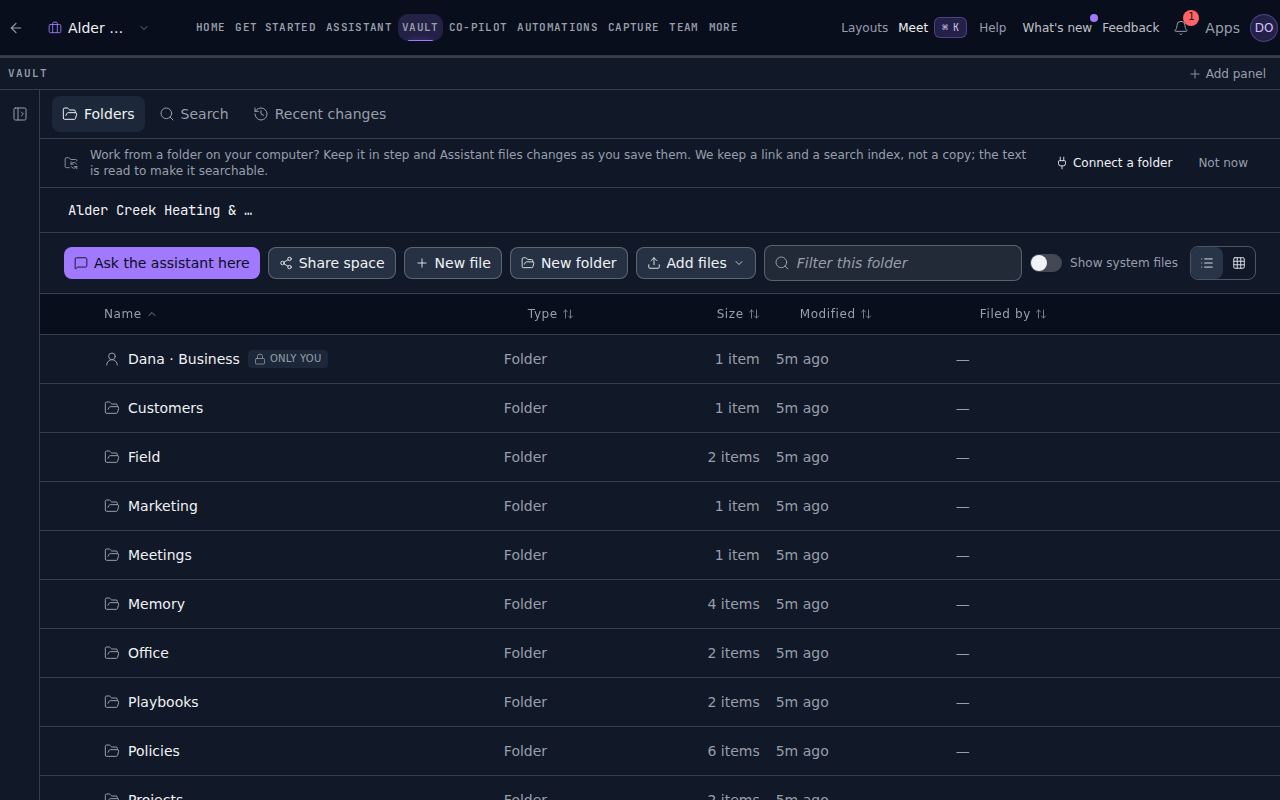
One shared place for what the business knows
Policies, notes, meeting summaries and work from your other apps live in folders the team shares. Private folders stay private, and the assistant reads only what the person asking can open.
Step 3 of 4
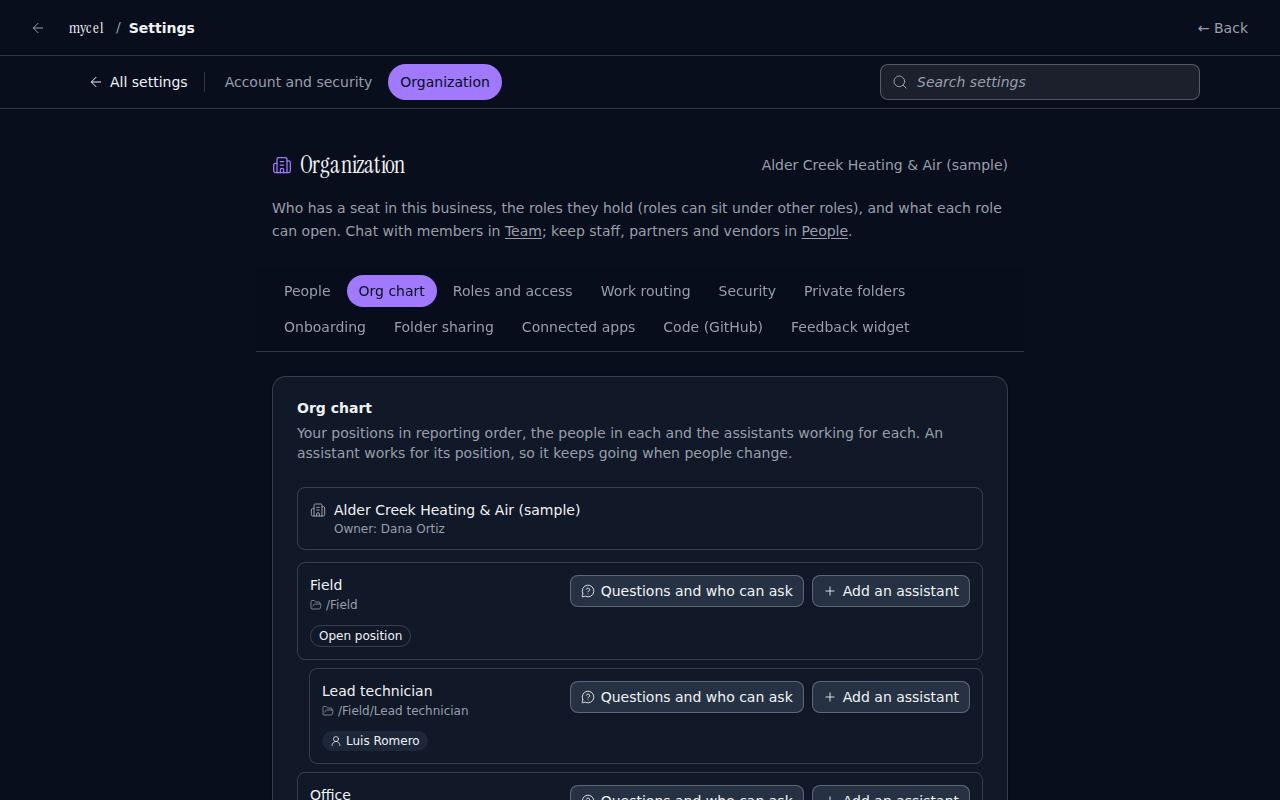
Positions, not just people
Set up the business as positions in reporting order. Each position has its own folder, the people in it and the assistants working for it, and you choose who can ask each position what.
Step 4 of 4
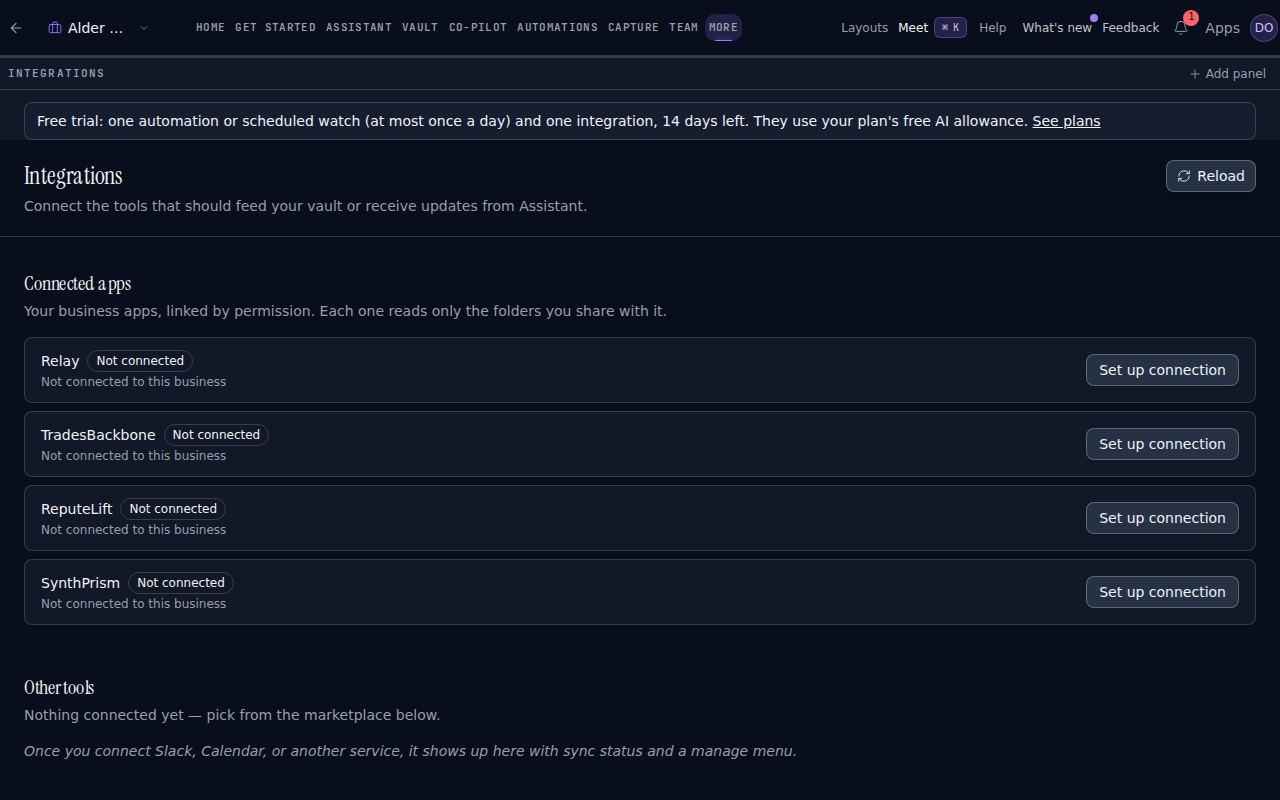
Your business apps, connected by permission
Relay or TradesBackbone, ReputeLift and SynthPrism connect to Mycel from this screen, and each one reads only the folders you share with it. Other tools you use connect below.
See it on a business like yours
A 15-minute walkthrough of Mycel as the brain of your business, and of the apps that connect to it. Or start free and look around first.
Free plan, no card needed.